
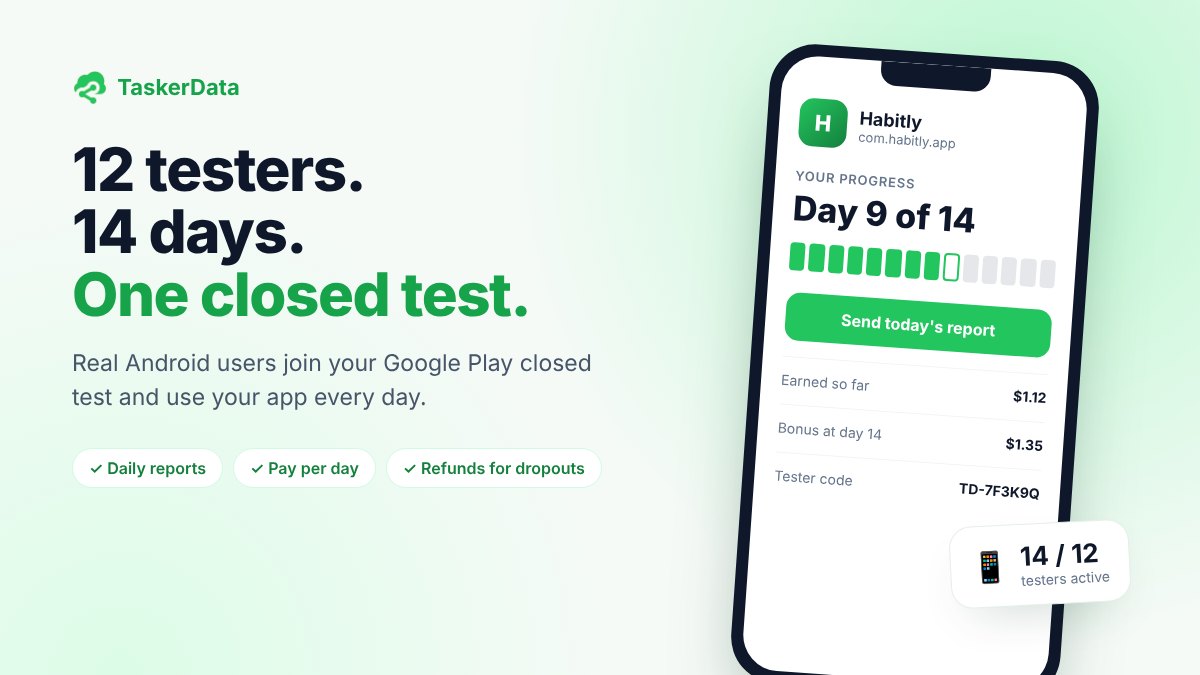
If you've just made a personal Google Play developer account, you've probably hit the same wall as everyone else. Before your app can go live, Google wants a closed test with at least 12 testers who stay opted in for 14 days in a row.
Finding 12 people is hard. Keeping all 12 for two weeks is harder.
That's why we built app tests on TaskerData. Real workers join your closed test with their own Android phones, use your app every day and send you a short report each day. You see who's still in at any time, and you only pay for the days they actually complete.
How it works in short
You create the test like any other campaign. Workers join, you add their emails in Play Console, and the 14 days start.
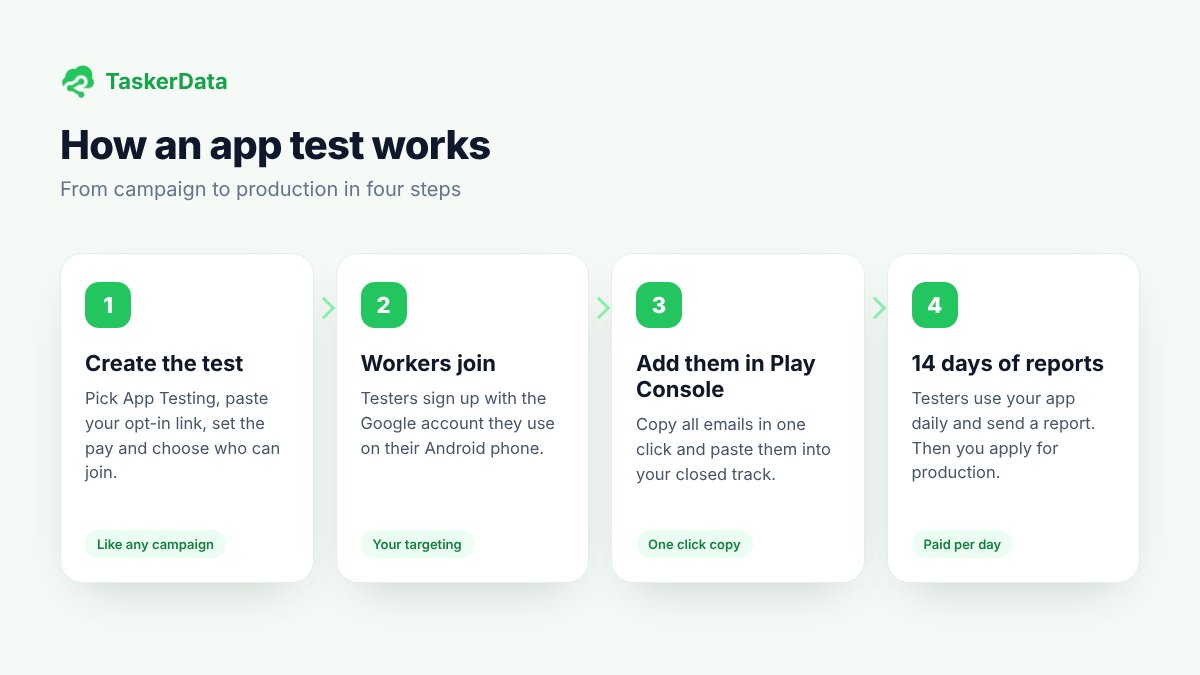
- Pick App Testing as the category when you create a campaign
- Workers join with the Google account they use on their Android phone
- You add their emails to your closed track in Play Console
- Testers use your app every day for 14 days and send a daily report
- When the 14 days are done, you apply for production
Creating your test
Open Create campaign in your requester dashboard and choose App Testing as the category. You can also press New app test on the App tests page, which opens the same form.
Step 1: your app
Enter your app's name and paste the opt-in link of your closed test. You'll find it in Play Console under Testing, Closed testing, Testers: it's the Join on the web link.
Then tell testers what to try every day. For example: add a few habits, set a reminder, open the stats page. Set the pay per day (from $0.12) and a bonus for testers who finish all 14 days.
You can also ask for a screenshot every day, so you can see that testers really opened your app.
Step 2: who can join
This works just like any other campaign. Choose the countries, the minimum success rate, a qualification test, or one of your own worker groups. Then set the number of testers.
We recommend at least 15 testers. Someone always drops out, and Google needs 12 who stay until the end.
Step 3: review and pay
You see everything once more, together with the total cost. Press Submit and your test is created. We check new tests before workers can join, and trusted requesters go live right away.
Adding testers in Play Console
Workers join with the email of the Google account they use on their Android phone. When you have enough testers, open your test and press Copy emails for Play Console. Paste the list into the tester list of your closed track.
Then come back to TaskerData and press I've added them in Play Console. Joining closes, money for any empty spots goes back to your balance, and your testers are told to opt in.
Google only counts testers whose email is on your list and who installed the app from Google Play, so testers always install it from the Play Store, never from an APK file.
The 14 days
Each tester has 48 hours to opt in on Google Play, install your app and upload a screenshot. Their own 14 days start from that moment.
Every day after that, testers use your app and send a short report. Here's what happens next:
- A report is approved and paid automatically after 24 hours
- Before that, you can approve it, or decline it with a reason, and the day's pay comes back to you
- A tester who misses 2 days is dropped, and the rest of their budget is refunded
- Testers who finish all 14 days get the bonus
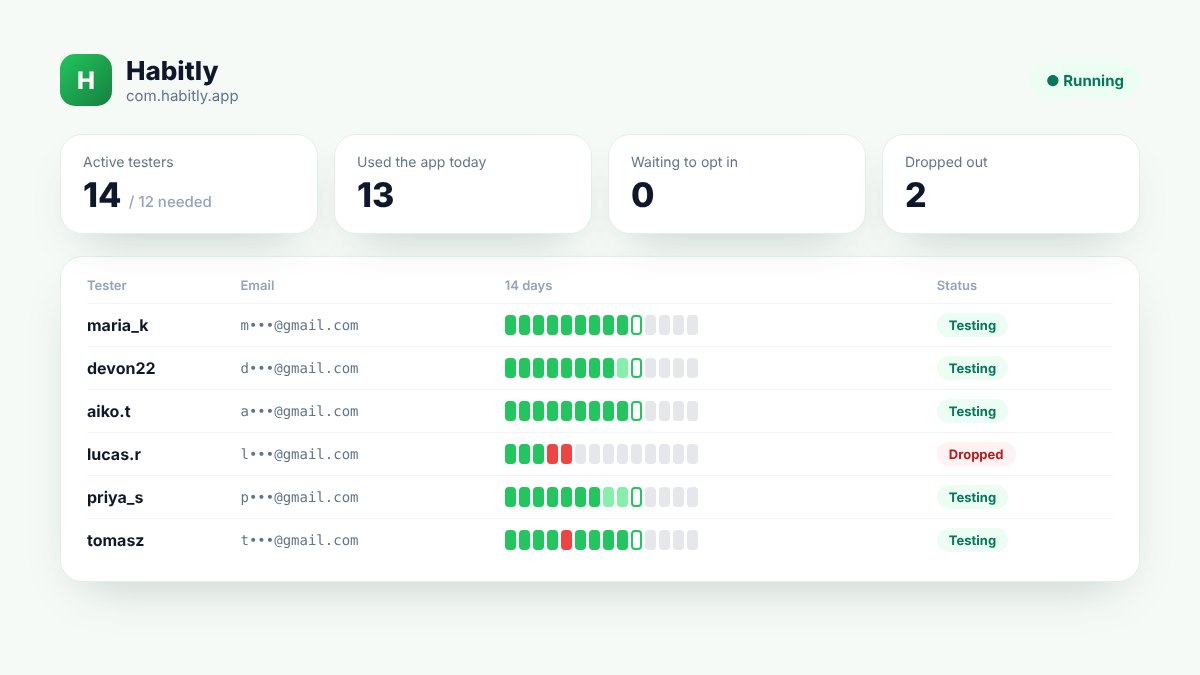
Your dashboard shows active testers, who used the app today, who is still waiting to opt in and who dropped out. If fewer than 14 testers are still active, you'll see a warning, so you're never surprised.
We also remind testers by push notification and email, so a forgotten day doesn't cost you a tester.
Finishing and applying for production
When Google's 14 days are over, apply for production access in Play Console. Then press I applied for production on TaskerData.
Until you do, testers are asked to stay opted in. Google looks at the 14 days right before you apply, so this matters.
Optional: check app use with our API
If you want proof that testers really open your app, turn on Verify app use with the TaskerData API. Your app sends one small request each time a tester opens it, and their day shows App opened.
You can even require it: testers can only send their daily report after your app has reported use that day. Each tester gets a short code like TD-7F3K9Q. If they install from the Google Play button on TaskerData, your app receives the code automatically, so nobody has to type anything. The details are in our API docs.
What it costs
You pay per tester, not per task. Each tester can earn the daily pay for 14 days plus the bonus. On top of that comes the 10% platform fee and a $2.00 base fee.
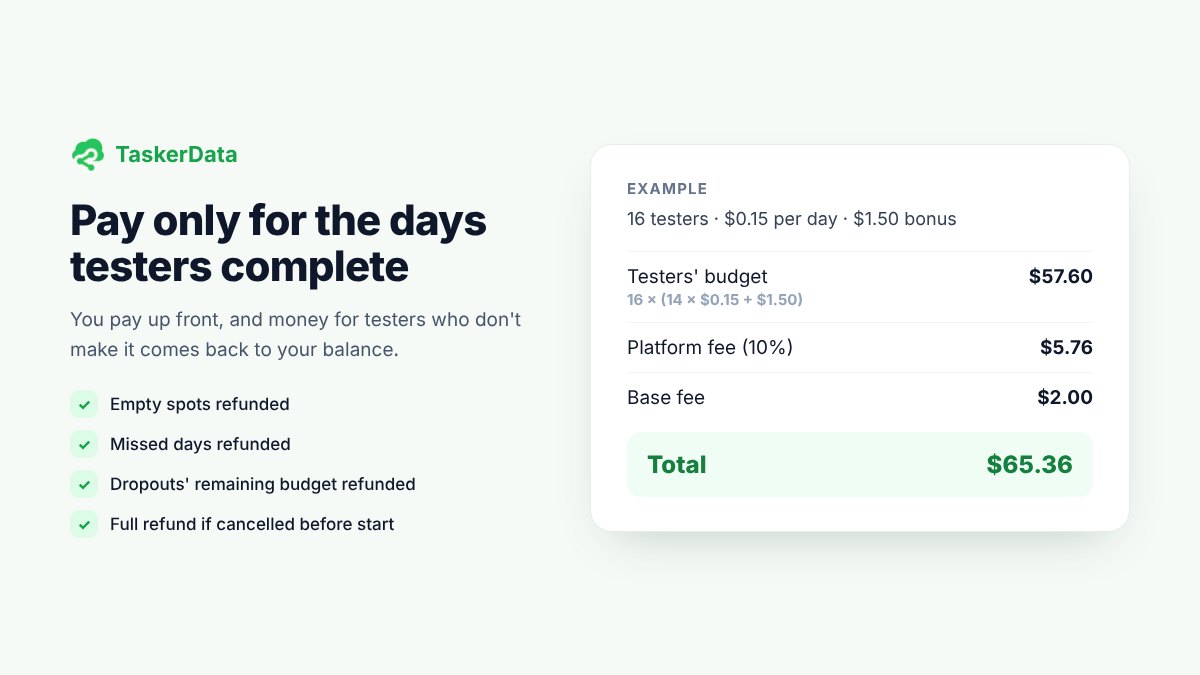
Example
16 testers at $0.15 per day with a $1.50 bonus:
- Testers' budget: 16 × (14 × $0.15 + $1.50) = $57.60
- Platform fee: $5.76
- Base fee: $2.00
- Total: $65.36
You pay this up front, but you don't lose money on testers who leave:
- Empty spots are refunded when you press I've added them
- Missed days and declined reports are refunded
- Testers who drop out get nothing more, and the rest of their budget comes back to you
- If you cancel before the test starts, or we don't approve it, you get everything back, fees included
For workers: get paid to test apps
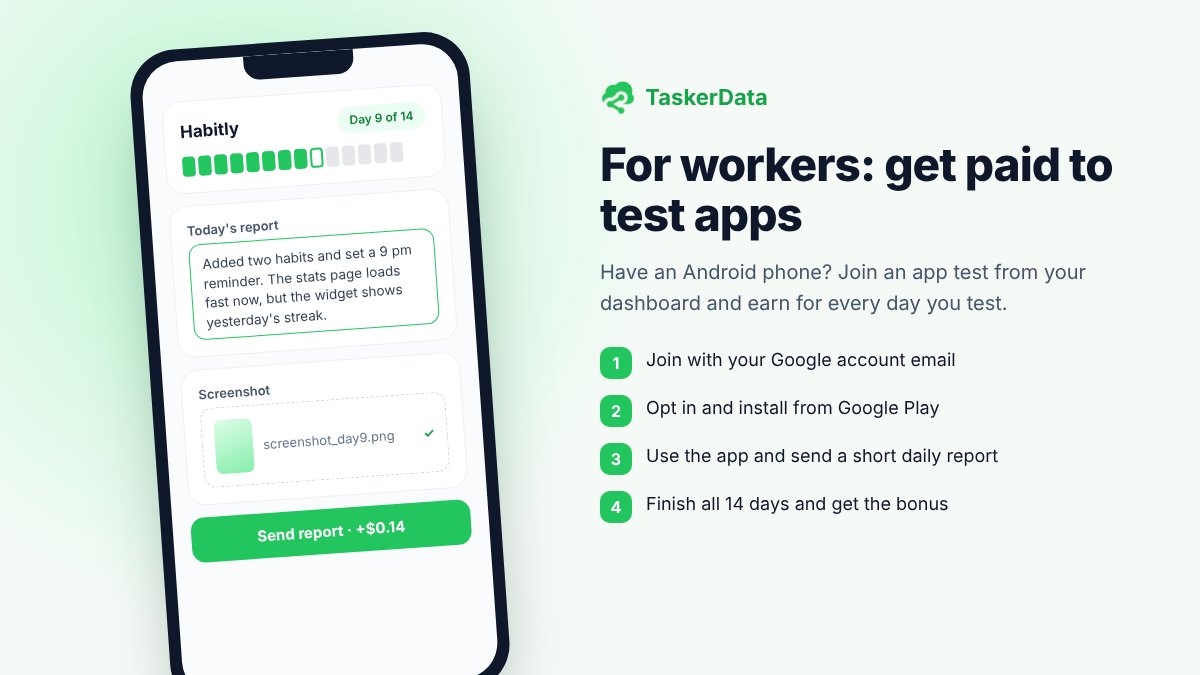
If you're a TaskerData worker with an Android phone, you'll see open app tests on your dashboard. Join with the Google account email you use on your phone and wait for the requester to add you.
Then opt in, install the app from Google Play, use it every day and send a short report. You're paid for every day, and you get the bonus when you finish all 14. Push notifications and emails remind you each day, so you don't miss one.
Get started
Ready to get your app on Google Play? Open your requester dashboard, choose Create campaign and pick App Testing. For a full walkthrough, see Google Play closed tests in our docs.